
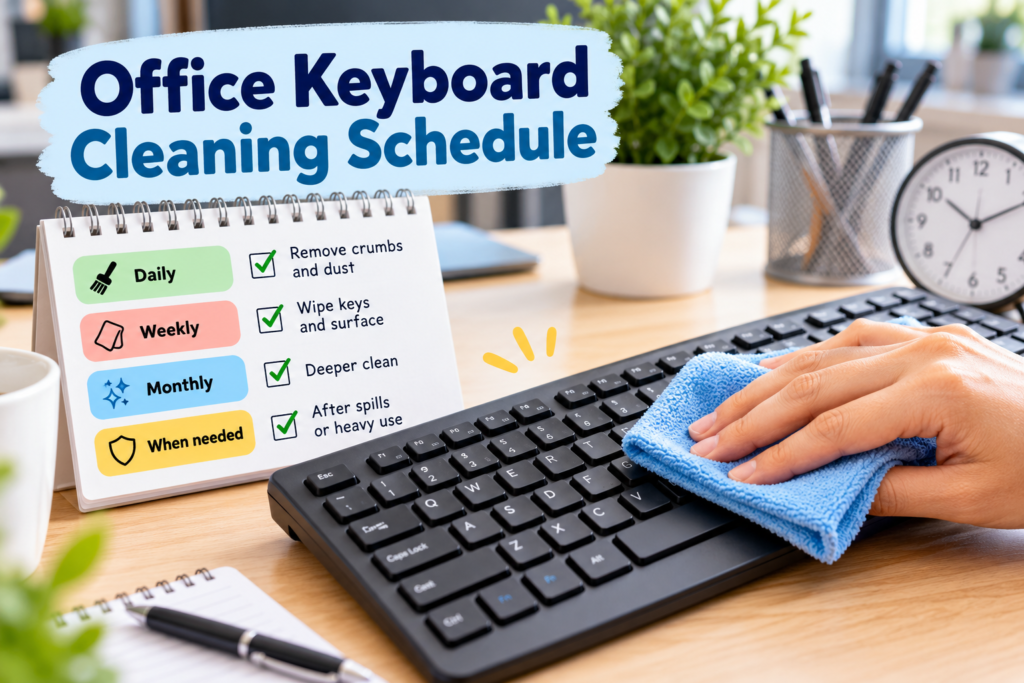
Office keyboards collect dust, skin oils, crumbs and everyday grime through regular use. Knowing how often to clean an office keyboard helps keep your workstation hygienic, comfortable to use and in better condition without spending unnecessary time on maintenance.
The right cleaning frequency depends on how many people use the keyboard, how often you work at your desk and the conditions of your office. A keyboard used by one person in a private office will usually need a different routine from one shared between several colleagues.
With a simple schedule, you can keep your keyboard clean with a few minutes of regular attention and reserve deeper cleaning for when it is genuinely needed.
The Recommended Office Keyboard Cleaning Schedule
For most office workers, a practical starting point is to wipe the keyboard at least once a week, remove loose debris more frequently and carry out a more thorough clean when dirt builds up.
The schedule below provides a useful guide for everyday office environments.
Cleaning task | Recommended frequency |
|---|---|
Remove visible crumbs and loose debris | As needed, ideally daily if debris accumulates |
Wipe frequently touched keys and the keyboard surface | Several times a week in shared offices; at least weekly for personal keyboards |
Clean around the keys and edges | Weekly |
Carry out a more thorough clean | Monthly, or sooner if visibly dirty |
Clean after spills or heavy contamination | Immediately, using a safe method appropriate to the situation |
Disinfect when appropriate | According to workplace hygiene needs and the keyboard manufacturer’s instructions |
These are practical recommendations rather than universal rules. A shared keyboard in a busy reception area may need daily attention, while a personal keyboard in a clean, low-traffic office may remain in good condition with a lighter routine.
Cleaning and disinfecting are also different tasks. Cleaning removes dirt and residue, while disinfecting uses an appropriate product to reduce microorganisms. Not every routine clean needs to involve disinfectant.
How to Clean an Office Keyboard Properly
Following a consistent method helps remove everyday dirt without allowing moisture or cleaning products to damage the keyboard.
1. Switch Off and Disconnect the Keyboard
Before cleaning, shut down the computer if necessary and disconnect a wired keyboard from the computer. If you use a wireless keyboard, switch it off and remove the batteries if the manufacturer’s instructions recommend doing so.
This reduces the risk of accidental key presses and helps prevent electrical damage during cleaning.
Never pour water or cleaning solution directly onto the keyboard. Liquids can seep between the keys and reach internal components.
2. Remove Loose Dust and Debris
Turn the disconnected keyboard upside down and gently tilt it to encourage loose crumbs and dust to fall out. Avoid shaking it aggressively or hitting it against the desk.
Use a soft brush to loosen debris around the keys. If you use compressed air, follow the product instructions, keep the can upright where required and use short, controlled bursts at the recommended distance.
Avoid forcing debris further into the keyboard. The aim is to remove loose material without damaging the key mechanisms.
3. Wipe the Keys and Outer Surface
Use a soft microfibre cloth that is lightly dampened with a cleaning product approved for your keyboard. If using a liquid, apply it to the cloth rather than spraying the keyboard directly.
Wipe the tops of the keys, the spaces around them and the outer casing. Pay particular attention to frequently touched keys, such as the space bar, Enter key and commonly used letter keys.
Do not allow liquid to pool around the keys. If the cloth feels wet enough to leave moisture behind, wring it out or use a drier cloth.
4. Clean Between the Keys
Dust and skin oils can accumulate around key edges even when the keyboard looks clean from above.
Use a soft brush or an appropriate cleaning tool to reach these areas. For a more detailed explanation of safe techniques, see our guide to cleaning an office keyboard properly.
Do not remove keycaps unless the keyboard manufacturer confirms that they are removable and provides suitable instructions. Laptop keyboards and many low-profile office keyboards can be damaged by improper key removal.
5. Disinfect When Necessary
Shared keyboards may require disinfection as part of the workplace’s hygiene routine, particularly when multiple people use the same workstation.
Choose a product compatible with the keyboard’s materials and follow both the product label and manufacturer guidance. Observe the required contact time without allowing liquid to enter the keyboard.
Avoid assuming that every household disinfectant is suitable for electronic equipment. Some products can damage printed key legends, coatings or plastic surfaces.
6. Allow the Keyboard to Dry
Before reconnecting or switching on the keyboard, make sure all cleaned surfaces are dry and no moisture has entered the keys.
If liquid has been spilled into the keyboard, disconnect it immediately and do not power it on to test whether it still works. Follow the manufacturer’s spill instructions or arrange professional assessment if necessary.
Explore KeepShine’s free cleaning resources for practical ways to organise everyday cleaning and keep your workspace maintenance on track.
Pro Tip

Keep a small, clean microfibre cloth near your workstation and wipe away fresh fingerprints and marks before they build up. For shared desks, make cleaning supplies available at the workstation so employees can clean frequently touched surfaces between users. A convenient routine is much easier to maintain than an occasional intensive clean.
What Determines How Frequently You Should Clean an Office Keyboard?
A fixed schedule is helpful, but the actual frequency should reflect how the keyboard is used.
Personal keyboards in private offices
If you are the only person using your keyboard, you work in a relatively clean environment and you do not eat at your desk, a weekly wipe-down may be sufficient for routine maintenance.
Check the keys regularly for dust, oily marks and visible debris. If the keyboard looks dirty before your scheduled cleaning day, clean it sooner rather than waiting for the next session.
Shared office keyboards
Keyboards used by several employees need more frequent attention because they are handled by different people throughout the day.
Reception desks, hot-desking stations, training rooms and shared workstations benefit from regular cleaning between users where practical, particularly for frequently touched surfaces. The precise routine should follow workplace hygiene policies and the equipment manufacturer’s instructions.
Cleaning supplies should be readily available so staff can maintain shared equipment without relying entirely on a weekly cleaning visit.
Busy or dusty workplaces
Offices near open windows, building work, storage areas or dusty equipment may accumulate debris more quickly. In these settings, inspect keyboards more frequently and remove visible dust before it becomes trapped around the keys.
Similarly, people who regularly eat at their desks may need to remove crumbs daily.
After spills or visible contamination
Do not wait for the next scheduled clean after a drink spill, sticky residue or noticeable contamination. Disconnect the keyboard where safe and follow the appropriate cleaning or spill-response instructions.
For more substantial dirt, a thorough office keyboard cleaning method may be appropriate, provided the keyboard is suitable for that level of cleaning.
How to Keep Office Keyboards Cleaner Between Cleans
Regular cleaning works best when combined with a few simple habits that reduce the amount of dirt reaching the keyboard in the first place.
Keep food and drinks away from the keys
Crumbs can lodge beneath the keys, while sugary drinks may leave sticky residue that interferes with their movement. Keep food away from the keyboard where possible, and place drinks at a safe distance.
If you eat at your desk, clear away crumbs promptly rather than brushing them towards the gaps between the keys.
Wash and dry your hands regularly
Hands transfer oils and everyday dirt onto key surfaces. Washing and drying your hands before using shared equipment can help reduce the build-up of grime.
This does not remove the need for cleaning, but it can make routine maintenance easier.
Include the keyboard in desk cleaning
A keyboard can become dirty again quickly if the surrounding desk is dusty. Include it in your regular workstation routine alongside your desk surface and computer screen.
Our guides to cleaning an office desk properly and cleaning a computer screen safely can help you organise these tasks into one practical session.
Clean the desk first, then clean the keyboard with suitable tools so dust from the surrounding surface is less likely to settle on freshly cleaned keys.
Use a cover when appropriate
A suitable keyboard cover can help limit dust and debris when equipment is not in use. Check that the cover is compatible with the keyboard and does not interfere with ventilation or normal operation.
Covers also need cleaning. Otherwise, dirt can accumulate on the surface that touches the keyboard.
Establish a workplace routine
In shared offices, assign responsibility for maintaining common equipment and make the expected frequency clear. A simple routine is more reliable than assuming somebody else will clean the keyboard.
You can also coordinate keyboard cleaning with other office maintenance tasks rather than treating it as a separate job every time.
Mistakes to Avoid
A few common cleaning mistakes can damage a keyboard or make the process less effective.
– Spraying liquid directly onto the keys. Cleaning fluid can seep inside and damage electronic components. Apply an approved product to a cloth instead, unless the manufacturer explicitly instructs otherwise.
– Using too much moisture. A soaking-wet cloth can leave liquid around key edges. Use a lightly dampened cloth and dry the surface afterwards.
– Using harsh cleaning chemicals. Strong solvents, abrasive products and unsuitable disinfectants may damage plastic, coatings or printed characters. Check product compatibility before cleaning.
– Removing keycaps without checking the instructions. Some keyboards have fragile mechanisms that are difficult to refit or easy to break. Clean around the keys unless removal is specifically supported.
– Ignoring shared equipment. Cleaning a communal keyboard only when it looks dirty may overlook frequently touched surfaces. Follow a routine appropriate to the number of users and the workplace’s hygiene policy.
– Reconnecting the keyboard while it is wet. Moisture can cause electrical problems. Ensure the keyboard is dry before returning it to use, and seek appropriate help after a significant spill.
For more detail on these issues, read our guide to office keyboard cleaning mistakes to avoid.
If keeping your entire workplace clean is becoming difficult to manage, KeepShine can help with professional cleaning to support a tidy, well-maintained office.
More Questions About Office Keyboard Cleaning
Here are answers to a few additional questions about keeping office keyboards clean and maintaining them safely.
Should I clean my office keyboard every day?
Not every keyboard needs a full daily clean. A personal keyboard in a clean office may only need a thorough weekly wipe, while shared keyboards may require daily attention or cleaning between users. Remove visible crumbs when they appear and follow your workplace’s hygiene procedures where applicable.
Is it better to clean or disinfect a keyboard?
Both serve different purposes. Cleaning removes visible dirt, oils and residue, while disinfecting uses a suitable product to reduce microorganisms. Start with cleaning where appropriate, then disinfect when workplace hygiene requirements call for it. Always check that the product is safe for your particular keyboard.
Can I use antibacterial wipes on an office keyboard?
Only if the wipes are compatible with the keyboard’s materials and the manufacturer permits their use. Some wipes contain ingredients that can damage coatings or printed characters, and excessive moisture can enter the keyboard. Check the product label, avoid wetting the gaps and never assume a wipe is suitable simply because it is labelled antibacterial.
How often should a shared keyboard be cleaned?
Shared keyboards generally need more frequent attention than personal keyboards. A sensible approach is to clean frequently touched surfaces between users where practical and follow the organisation’s hygiene policy. Reception areas, hot-desking stations and training rooms may need a more structured routine because equipment is handled by several people.
How often should an office keyboard be deep cleaned?
For a typical personal keyboard, a more detailed clean about once a month can be a useful starting point. However, visible grime, frequent use and the working environment may justify more frequent attention. Deep cleaning should mean more careful removal of debris and residue, not automatically dismantling the keyboard or exposing it to more liquid.
What should I do if I spill a drink on my keyboard?
Disconnect the keyboard or switch it off immediately if it is safe to do so. Do not continue typing or reconnect it to check whether it works. Follow the manufacturer’s spill-response guidance, and arrange assessment or replacement if liquid has entered the device. Drying the exterior alone does not guarantee that internal components are safe.
Subscribe to KeepShine for more practical cleaning guides and workspace maintenance advice to help you keep your office clean and organised.
Final Thoughts: Make Keyboard Cleaning Part of Your Office Routine
The best office keyboard cleaning schedule is one that reflects how the equipment is used and is easy to maintain consistently. For many personal keyboards, a weekly wipe and a more detailed monthly clean provide a useful starting point. Shared keyboards and busy workstations may need more frequent attention.
Start by removing visible debris, wiping the keys safely and checking whether your workplace requires disinfection. Avoid excessive moisture and unsuitable cleaning products, and always follow the manufacturer’s care instructions.
Most importantly, do not wait until the keyboard looks heavily soiled before giving it attention. A few minutes of regular maintenance can make workstation cleaning easier and help keep frequently used office equipment in good condition.